Key Takeaways
- Most small teams lose deals because their pipeline is a mess.
- Define your sales stages, then qualify leads with simple scoring.
- Automate follow-ups and sync your pipeline with TwiLead.
- Visualize progress with a dashboard to see where deals are stuck.
Introduction
Most small teams lose deals because their pipeline is a mess. You need a clear map that shows each step from first contact to payment. In this guide we’ll walk you through every move you need to make, using simple tools and real examples. By the end you’ll have a sales pipeline saas that runs on autopilot and lets you close more deals.
We dug into 19 SaaS platforms and found that only 11% bundle email marketing and appointment scheduling. The table below shows the four tools we studied.
| Name | Automation Capabilities | Integrations | Built‑in Email Marketing | Appointment Scheduling | Best For | Source |
|---|---|---|---|---|---|---|
| TwiLead (Our Pick) | Email marketing automation and AI‑driven workflow automation | Zapier, Hubspot Operations hub, Notion AI, Monday, Calendly, Timify, SimplyBookme, Square Appointments, MailChimp, Active Campaign, Hootsuite, Buffer, and other platforms via data import. | true | true | Best for all‑in‑one automation | twilead.com |
| Keap | yes – all-in-one automation platform merging CRM with marketing | WordPress, Shopify, Stripe, PayPal, QuickBooks, Outlook, Gmail, Zapier, and 2,000+ apps | Yes | Yes | Best for extensive app ecosystem | monday.com |
| HubSpot | yes: visual workflow builder with if/then branching and multi‑step email sequences | Native connections to Gmail, Outlook, Slack, Shopify, WordPress, Stripe, and 1,000+ apps through HubSpot marketplace | yes: sequences let you build multi‑step email cadences with automatic enrollment | — | Best for visual workflow builder | simular.ai |
| Pipedrive | yes: automation builder centered on deal stages, deal rotting triggers auto‑send re‑engagement emails | Native integrations with Gmail, Outlook, Slack, Trello, Asana, Zapier, and 400+ apps through marketplace | yes: auto‑sends re‑engagement email using pre‑approved template | yes – calendar sync with meeting link generation for Google Meet, Zoom, Teams | Best for deal‑stage automation | simular.ai |
Step 1: Define Your Sales Stages
First, write down each step a lead takes before they pay. A typical sales pipeline saas for a small business has five parts: Prospect, Qualified, Demo, Proposal, Closed.
Prospect is anyone who shows up on your site or fills a form. Qualified means they match your ideal customer profile (ICP). Demo is when you show the product live. Proposal is the price offer. Closed is the signed deal.
Why does this matter? When every rep uses the same map, you can see where deals get stuck and move them forward. Build your pipeline around a clear sales workflow so every deal keeps moving forward.
Here’s a quick way to set the stages in TwiLead:
- Go to the pipeline view.
- Click “Add Stage”.
- Name it (e.g., “Qualified”).
- Choose a color so you can see it at a glance.
- Save.
Make sure each stage has a clear hand‑off rule. For example, when a prospect becomes qualified, the SDR should tag the record and move it to the “Qualified” column.
Use the TwiLead platform overview to see a live demo of the pipeline builder.
Now add some metrics. You can track how many leads enter each stage each week. If you see a drop at “Demo”, maybe your outreach script needs work.
“A clear pipeline is the backbone of any SaaS sales effort.”
Don’t forget to involve marketing. They should feed the top of the funnel with qualified leads, not just raw traffic.
Bottom line: A well‑defined stage map lets everyone know where a deal lives and what to do next.
Step 2: Qualify Leads with Simple Scoring
Not every prospect is worth your time. Scoring helps you pick the hot ones.
Start with two groups: firmographic data (size, industry) and behavior data (email opens, demo requests). Give each item a point value.
For example, a company with 50+ employees gets 2 points. If they opened your last email, add 1 point. A score of 5 or more means the lead is sales‑ready.
Set the score thresholds in TwiLead’s lead scoring engine. The system will automatically move leads that hit the threshold into the “Qualified” stage.
Why use a score? It stops reps from chasing cold leads and focuses them on the ones that will close.
Here’s a simple score sheet you can copy:
- Employee count > 20: 2 points
- Visited pricing page: 2 points
- Opened last 3 emails: 1 point each
- Requested demo: 3 points
When a lead hits 5 points, the system tags it “Hot” and sends an automatic email.
Check out the Freshsales opinion piece for more ideas on scoring fields.
Keep the score simple. Too many factors make it hard to maintain.
According to Wikipedia’s sales pipeline page, a clean scoring system can lift win rates by up to 15%.
Bottom line: Simple scoring lets you focus on leads that actually buy.
Want to know how you could improve your business?
Our team is available for a free consultation.
Step 3: Automate Follow‑Ups (Video)
Once a lead is qualified, you need to stay in touch without manual work.
Automation can send a series of emails, schedule a call, and log each touch.
In TwiLead you build a workflow like this:
- Trigger: Lead score hits 5.
- Action 1: Send “Thanks for your interest” email.
- Action 2: Wait 2 days.
- Action 3: If no reply, send a reminder.
- Action 4: Create a task for the rep to call.
This sequence runs for every hot lead, so reps never miss a beat.
The video above shows a live demo of the workflow builder.
Automation also logs each email open and click. That data feeds back into the score, raising the lead’s priority if they engage.
Remember to test the flow with a dummy contact first. Check that every step fires as expected.
Automation cuts the time you spend on admin by half, letting you sell more.
“The best time to start automating follow‑ups was yesterday.”
Bottom line: Automated follow‑ups keep prospects warm and free reps for selling.
Step 4: Sync Your Pipeline with TwiLead
All the pieces need to talk to each other. TwiLead can pull data from email, calendar, and even your website.
Start by connecting your email provider (Gmail or Outlook). TwiLead will log every inbound and outbound message.
Next, link your calendar. When a prospect books a slot, the deal moves to “Demo” automatically.
You can also sync with Zapier to pull leads from Facebook ads or Google forms.
All these connections live in the “Integrations” tab. Pick the app, click “Connect”, and grant permission.
When everything is linked, you get a 360° view of each contact , email history, call notes, meeting times, all in one place.
Read the comparison of cheaper CRMs for ideas on which integrations matter most for small teams.
Syncing saves time and reduces data errors.
Bottom line: When TwiLead talks to your email and calendar, the pipeline stays up to date without manual work.
Step 5: Visualize Progress with a Dashboard
Seeing data at a glance helps you steer the ship.
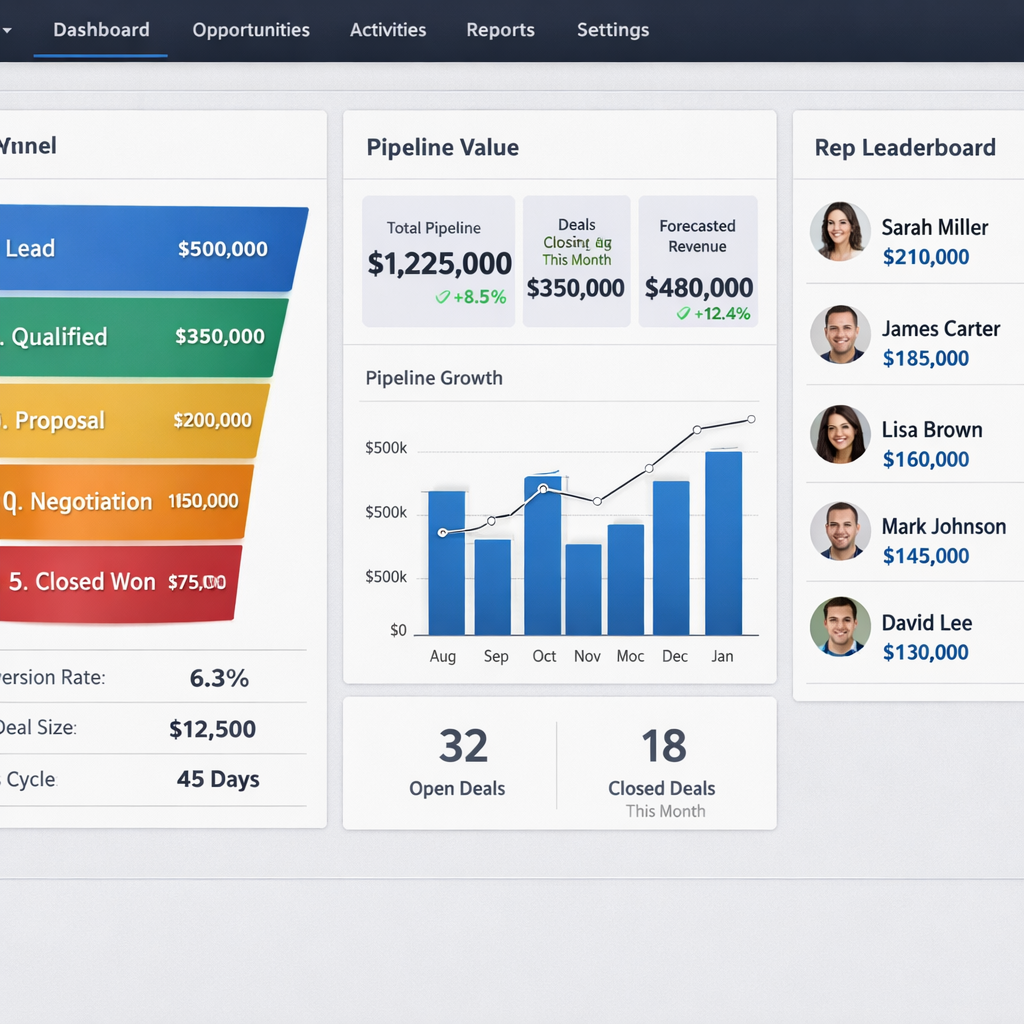
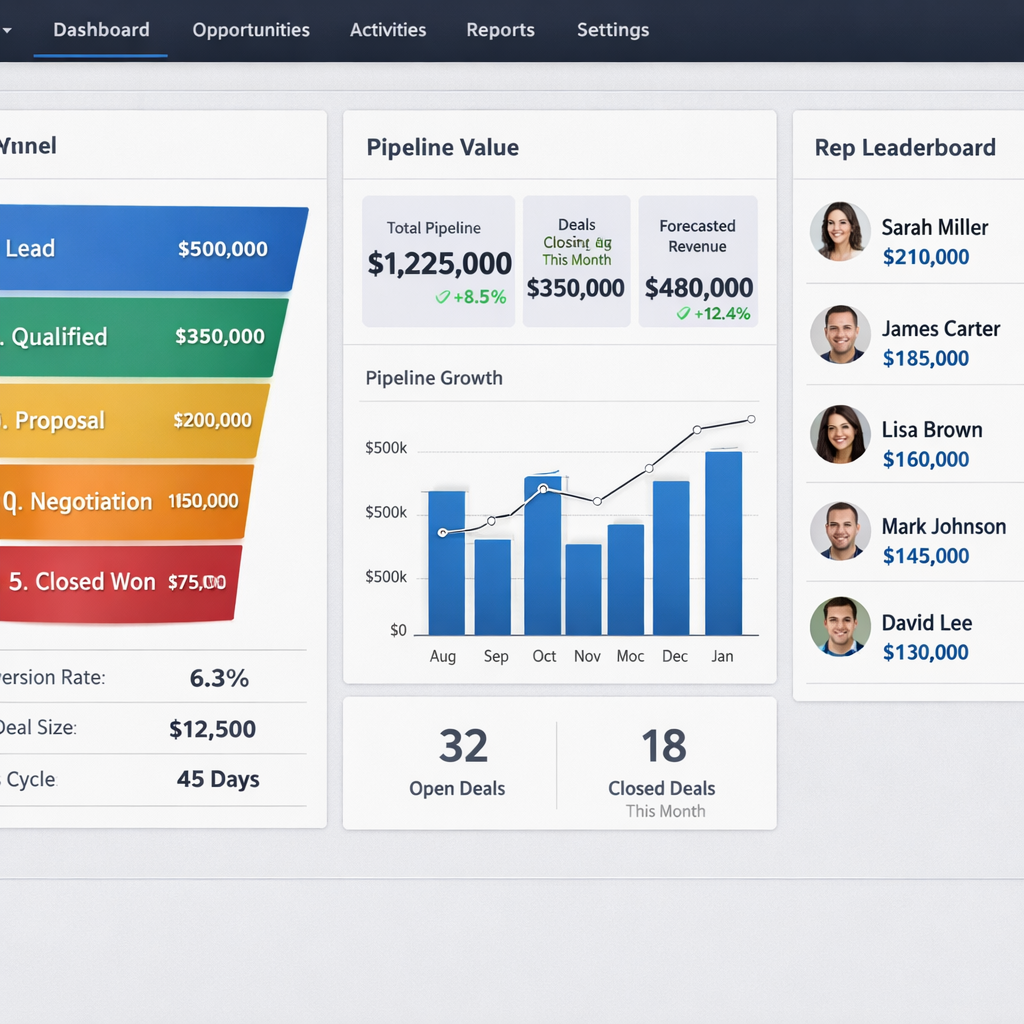
In TwiLead, go to the dashboard builder and add the widgets you need: total pipeline value, win rate, average deal size, and activity count.
Each widget can be filtered by rep, stage, or date range. That way you can spot a rep who is falling behind or a stage that is bottlenecked.
Set the dashboard as the home screen for the whole sales team. When they log in they see their numbers first.
Here’s a simple layout to try:
- Top row: Total pipeline value (big number).
- Second row: Funnel chart showing leads per stage.
- Third row: Rep leaderboard for activities logged.
- Bottom row: Forecast vs target bar chart.
Update the dashboard weekly. If a metric slides, dig into the underlying deals.
Use the AI sales automation guide for tips on building predictive widgets.
“A dashboard is like a cockpit , you can’t fly blind.”
Bottom line: Visual dashboards keep the whole team aligned and focused on the right numbers.
Step 6: Evaluate Performance with a Comparison Table
Now that your pipeline runs, you need to measure how it stacks up against goals.
Below is a simple comparison table you can copy into any spreadsheet. It lines up your actuals with targets for the most important metrics.
| Metric | Target | Actual | Status |
|---|---|---|---|
| Monthly New Leads | 200 | — | — |
| Qualified Lead Rate | 30% | — | — |
| Average Deal Size | $5,000 | — | — |
| Win Rate | 20% | — | — |
| Sales Cycle (days) | 45 | — | — |
Fill in the “Actual” column each week. The “Status” column can be color‑coded: green for on target, orange for close, red for off.
Look for patterns. If win rate is low, maybe the demo stage needs a better script. If the sales cycle drags, check the proposal stage for bottlenecks.
Use the data to run a weekly review meeting. Bring the table up on screen, discuss any red cells, and set action items.
Bottom line: Regularly compare actuals to targets to keep the pipeline on track.
Bonus: Common Mistakes & How TwiLead Solves Them (Image)
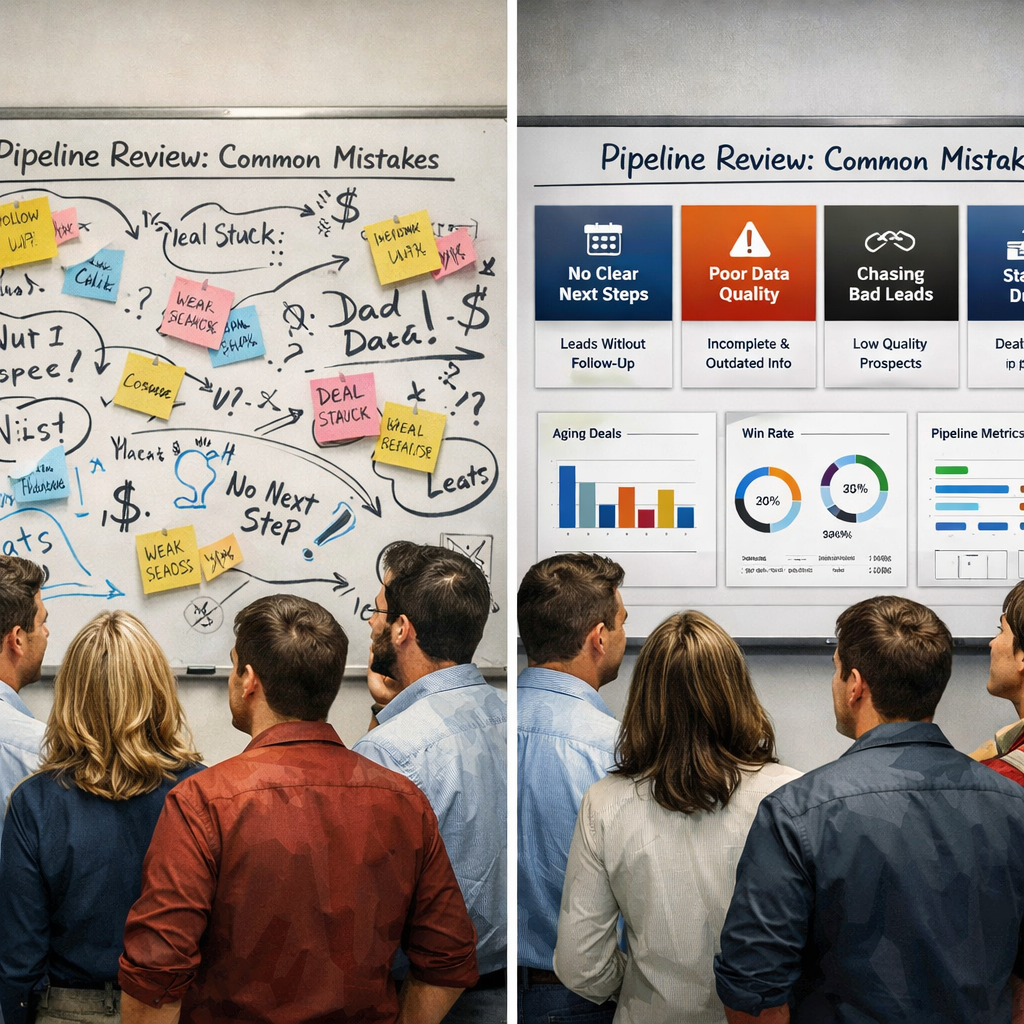
Even with a solid pipeline, teams slip up. Here are three frequent errors and how TwiLead fixes them.
1️⃣ Forgetting to update stage status. Leads sit idle and forecasts become wrong. TwiLead sends an automatic reminder if a deal stays in the same stage for more than 7 days.
2️⃣ Over‑prospecting the wrong accounts. Without a score, reps chase cold lists. TwiLead’s built‑in scoring moves only hot leads to the next stage.
3️⃣ Manual data entry errors. Typos and missing notes cause confusion. TwiLead’s AI capture pulls data from email and call logs so the record stays accurate.
Bottom line: Fixing these mistakes boosts win rates and shortens sales cycles.
Conclusion
Building a sales pipeline saas doesn’t have to be hard. We showed you how to map stages, score leads, automate follow‑ups, sync every tool, watch the data on a dashboard, and check performance with a simple table. When you avoid the three common mistakes, the whole process runs smooth and you close more deals.
If you’re ready to try a tool that does it all for $127 a month with unlimited users, start a 14‑day free trial of TwiLead today. No credit card, no lock‑in. Let us help you grow faster.
FAQ
What is a sales pipeline saas?
A sales pipeline saas is a cloud‑based system that lets you map each step a prospect takes, score them, and move them through stages until they pay. It usually includes CRM, email automation, and reporting in one place.
How many stages should my pipeline have?
Most small businesses work well with five to six stages: Prospect, Qualified, Demo, Proposal, Negotiation, Closed. Too many stages add confusion; too few hide detail. Start with five and adjust as you learn.
Can I use TwiLead if I already have a calendar app?
Yes. TwiLead syncs with Google Calendar, Outlook, and many booking tools. When a prospect books a meeting, the deal moves to the Demo stage automatically.
How does lead scoring work in TwiLead?
You set point rules for firmographic info (size, industry) and behavior (email opens, demo requests). When a lead reaches the score you set, TwiLead tags it “Hot” and moves it forward.
Do I need technical staff to set up the automation?
No. TwiLead’s visual workflow builder lets you drag and drop actions. You can create a follow‑up email sequence in minutes without coding.
What if my team is remote?
TwiLead is web‑based, so anyone with a browser can log in. All activity is saved in the cloud, and the dashboard shows real‑time updates for the whole team.
How can I track if my pipeline is healthy?
Use the dashboard widgets for pipeline value, win rate, and average cycle length. Compare them to the targets in the simple table we showed. If any metric falls behind, investigate the stage that is lagging.
Is there support if I get stuck?
Yes. TwiLead offers 24/7 human support via chat. Our experts can walk you through any setup step and help you get the most out of the system.