If you’re looking to streamline your appointment scheduling, automate your bookings, and offer a smooth experience to your clients, learning how to create a booking calendar in TwiLead is essential.
In this guide, you’ll walk through every step, from accessing the calendar dashboard to customizing availability, notifications, and embedding your calendar on your site.
Let’s dive in.
Step 1: Go to “Calendars”
From your TwiLead dashboard, navigate to the left‑side menu and click on Calendars.
This is where you can view, manage, and create all your booking calendars.

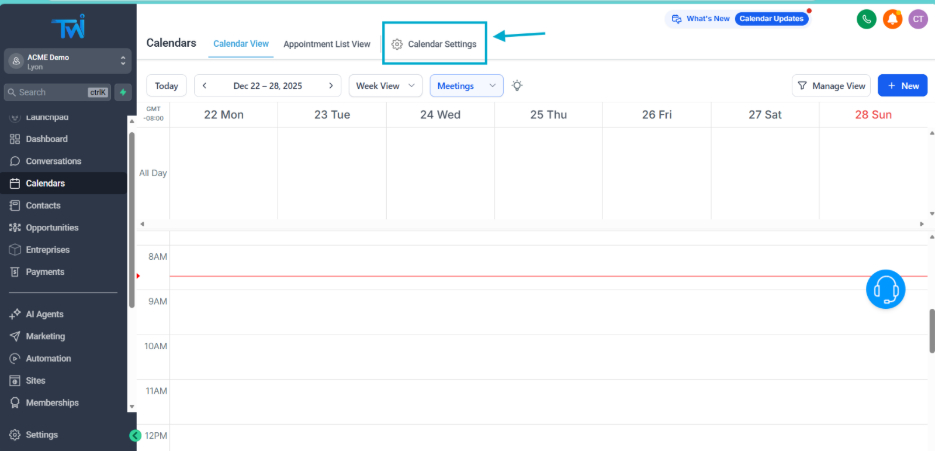
Step 2: Open “Calendar Settings”
Inside the Calendars section, click on Calendar Settings.
This takes you to the configuration area where you can create a new calendar or edit an existing one.
Step 3: Create a New Calendar
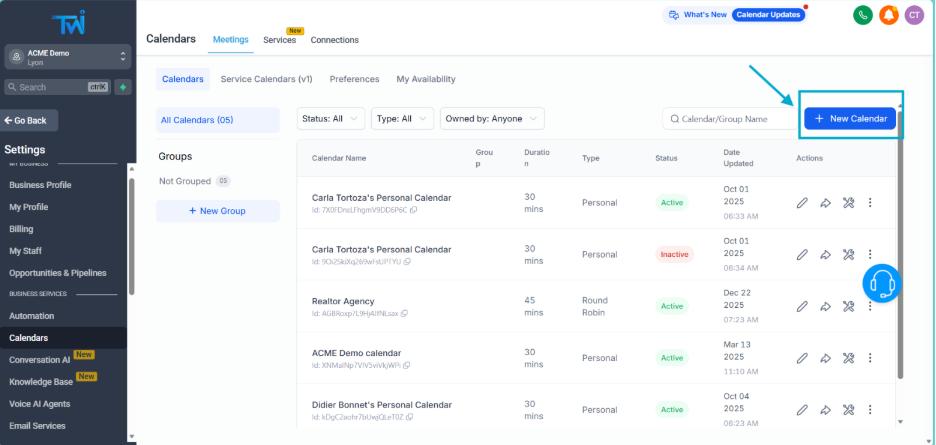
Click the button New Calendar.
This opens the calendar creation wizard where you’ll build your booking system step by step.
Step 4: Choose Your Calendar Type
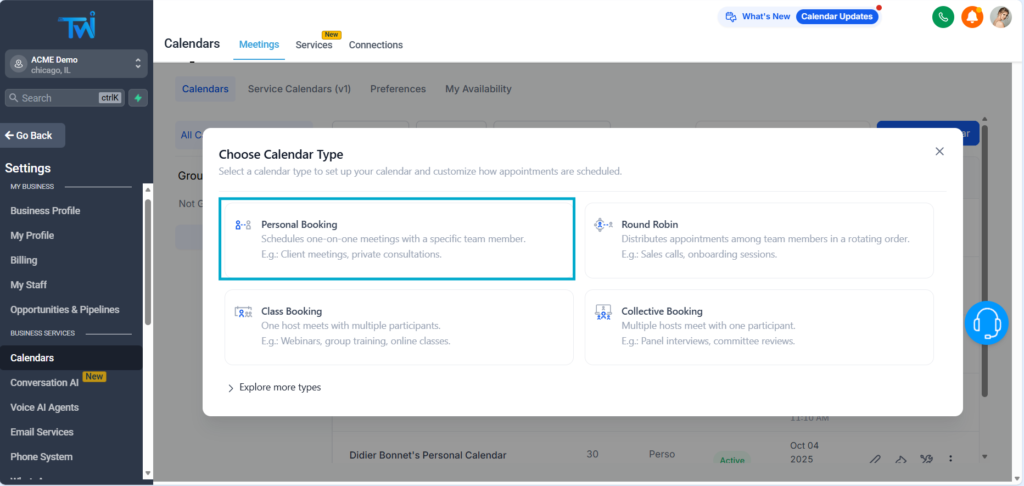
When creating a booking calendar in TwiLead, you can select from several calendar types depending on your needs:
- Personal Calendar
- Round Robin Calendar
- Class Booking Calendar
- Collective Booking Calendar
- Event Calendar
- Service Booking Calendar
Each calendar type supports different booking workflows.
If this is your first time creating a booking calendar, we recommend choosing a personal calendar. This is a simple but efficient booking system.
Do you want to explore more advanced calendars?
👉 In the video tutorial, we explain the exact differences between every calendar type so you can choose the one that best fits your business.
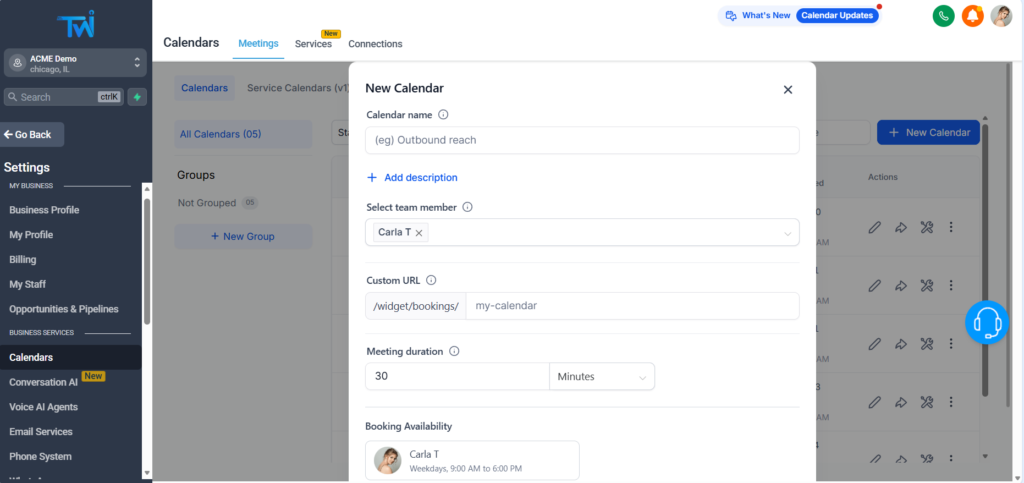
Step 5: Add the Basic Details
Start by completing the foundational information of your new booking calendar:
- Calendar Name
- Description
- Event Type (consultation, onboarding, strategy session, demo, etc.)
- Meeting Duration (15, 30, 45, 60 minutes…)
This helps keep calendars organized and ensures visitors know exactly what they’re booking.
Step 6: Publish or Embed Your Calendar
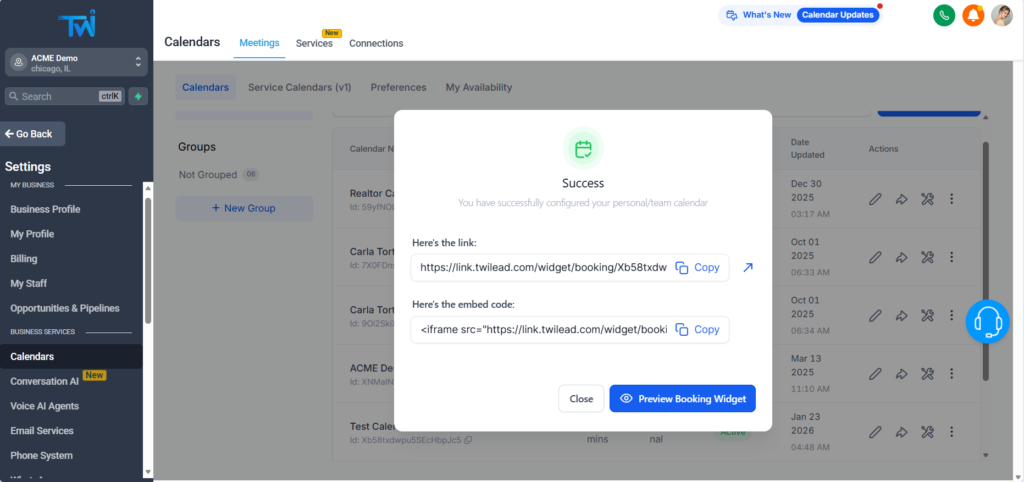
Once everything is set, click Save & Continue.
You’ll now see publishing options:
- Share the direct booking link
- Embed the calendar on your website
- Add it to funnels or landing pages built inside TwiLead
Your booking system is now live!
Customize your Booking Calendar on TwiLead
If you want to change your availability and customize your calendar, we have an article explaining all the details. You can find it here.
Final Thoughts on How to Create a Booking Calendar in TwiLead
Learning how to create a booking calendar in TwiLead gives you a powerful way to automate appointments, simplify your customer journey, and eliminate manual scheduling.
Whether you’re offering coaching calls, demos, consultations, events, or classes — TwiLead gives you full flexibility to create a booking flow perfectly tailored to your business.
If you’d like personalized, expert guidance to help you create a high‑converting lead attraction and conversion system inside TwiLead—fully tailored to your business—you can book a 1:1 onboarding call with our team.
This exclusive support is available only for active TwiLead users and is the fastest way to set up a powerful customer acquisition engine with confidence.